Some links below are affiliate links. If you buy through them we may earn a small commission at no cost to you.
For most kids who like to draw, the best tablet is the base Apple iPad, the iPad (A16), with the Apple Pencil (USB-C). It runs every major drawing app and keeps up as a child goes from doodles to real digital art. One detail most guides skip: Apple’s own comparison says the USB-C Pencil has no pressure sensitivity, so lines do not get thicker when your child presses harder. For a casual 7-year-old that does not matter. For a 12-year-old who wants to shade like they do on paper, it decides which pencil, and sometimes which iPad, you buy.
Below are nine picks sorted by age and type, a chart of which pencil works with which iPad, and the settings to change before you hand it over.
For most kids 6 to 12, get the iPad (A16) with the Apple Pencil (USB-C). For small hands or drawing on the go, the iPad mini (A20 Pro) with the Apple Pencil Pro. For a tween or teen who is serious about art, the iPad Air (M4) with the Apple Pencil Pro. For an Android family, the Samsung Galaxy Tab S10 FE, which has the S Pen in the box. For preschoolers and kids who drop everything, the Amazon Fire HD 10 Kids. For a teen who draws on a laptop or school Chromebook, the Wacom One pen tablet.
Quick comparison
| Pick | Best for | Pen and pressure | Watch out for |
|---|---|---|---|
| iPad (A16) + Apple Pencil (USB-C) | Most kids 6 to 12 | Pencil sold separately; USB-C Pencil has no pressure | Does not work with the Pencil Pro |
| iPad mini (A20 Pro) + Apple Pencil Pro | Small hands, drawing on the go | Pencil Pro has pressure, tilt and squeeze | Small canvas, costs more than the base iPad |
| iPad Air (M4) + Apple Pencil Pro | Serious tween and teen artists | Pencil Pro has pressure, tilt and squeeze | Price adds up fast with the pencil and a case |
| Samsung Galaxy Tab S10 FE | Android families, ages 9 and up | S Pen included, pressure-sensitive | No Procreate; set up controls yourself |
| Amazon Fire HD 10 Kids | Ages about 3 to 7, first tablet | Fingers or a basic stylus, no pressure | Limited art apps, no Procreate |
| Fire HD 10 Kids Pro | Ages about 6 to 12 who still need a tough case | Basic stylus, no pressure | Same app limits as the Kids version |
| Wacom One pen tablet | Teens drawing on a laptop or Chromebook | Battery-free pressure pen included | No screen; you draw on the pad and look at the computer |
| Wacom One 14 pen display | Teens who want to draw on a screen with computer software | Battery-free pen, 4,096 pressure levels | Needs a computer with the right USB-C port |
| Boogie Board Jot | Ages 3 and up, car rides, screen-free doodling | Plastic stylus, single color | Erases everything at once; nothing is saved |
The best tablet for kids drawing, by age
Age is a rough guide. How careful your child is with things, and how much they already draw, matter more than the number on the birthday cake.
- Ages 2 to 5: An LCD writing board like the Boogie Board Jot, or a Fire Kids tablet with finger painting apps. Small kids press hard, drop things and lose pencils, so skip anything with a $100 stylus.
- Ages 5 to 8: The Amazon Fire HD 10 Kids if it is their first tablet, or a base iPad in a thick kids case if drawing is already their favorite thing.
- Ages 8 to 12: The iPad (A16) with the Apple Pencil (USB-C) for most kids. The iPad mini if they want to carry it everywhere and you can stretch the budget.
- Ages 13 and up: The iPad Air (M4) with the Apple Pencil Pro for a committed artist, the Galaxy Tab S10 FE on Android, or a Wacom One if they already have a laptop. Our best drawing tablet for teens guide goes deeper on this age.
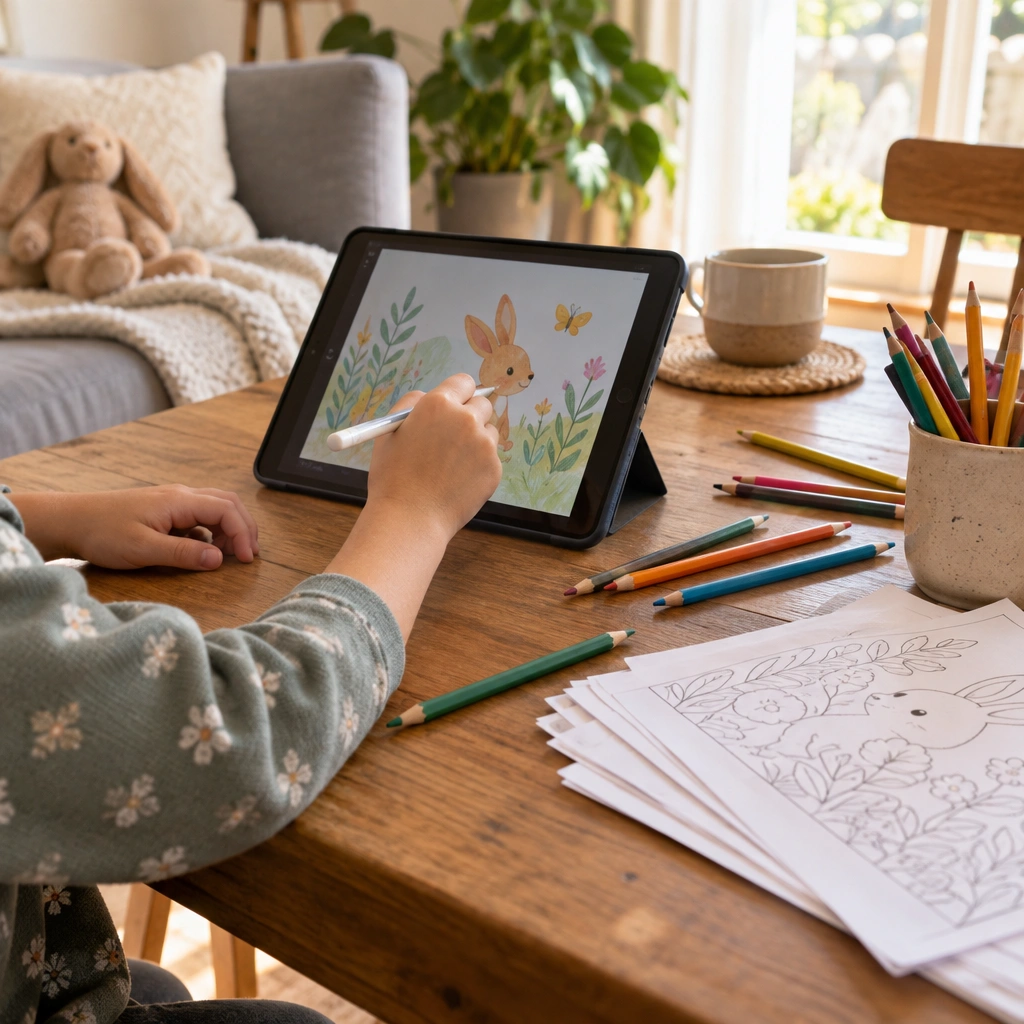
Which iPad is good for an 8-year-old drawing with the Apple Pencil?
The base iPad (A16) with the Apple Pencil (USB-C). It runs the same drawing and coloring apps as the expensive models, it is the cheapest current iPad, and an 8-year-old will not miss the extras. Put the money you save into a good case.

Two things to know before you check out. First, the base iPad does not work with the Apple Pencil Pro, so do not buy that pencil for it. Second, the USB-C Pencil skips pressure sensitivity. Apple lists the first-generation Apple Pencil as compatible with the A16 iPad too, through a USB-C adapter, and that older pencil does respond to pressure. If your child already shades and varies line weight on paper, that is the cheaper way to get pressure on a base iPad. Otherwise the USB-C Pencil is the simpler buy.
Here is how Apple’s compatibility list lines up for the iPads sold now:
| iPad | Apple Pencil Pro | Apple Pencil (USB-C) | Apple Pencil (1st generation) |
|---|---|---|---|
| iPad (A16), the base 11-inch model | No | Yes | Yes, with USB-C adapter |
| iPad mini (A17 Pro or A20 Pro) | Yes | Yes | No |
| iPad Air 11-inch or 13-inch (M2, M3, M4) | Yes | Yes | No |
| Does the pencil sense pressure? | Yes | No | Yes |
Apple changes this list with new models, so check the Apple Pencil page for your exact iPad before buying. On any iPad, go to Settings, General, About to see the model name.
iPads
iPad (A16) with Apple Pencil (USB-C)
This is the one to buy for most kids. The app choice on iPad is the deepest of any tablet, from simple finger painting to Procreate, which only exists on iPad. It is also the iPad you will be least upset about when it falls off the couch. Our best iPad for coloring guide covers storage sizes and accessories in more detail.
Best for: Kids roughly 6 to 12 whose drawing is turning into a real hobby.
Watch out for: The pencil is sold separately, the USB-C Pencil has no pressure sensitivity, and the Pencil Pro will not work with it.
Skip it if: Your child is under 5 or very rough with devices and you will not add a rugged case.
iPad mini (A20 Pro) with Apple Pencil Pro
The mini is the iPad that fits small hands and a backpack pocket. Apple lists it as working with the Apple Pencil Pro, so your child gets pressure, tilt, squeeze to open the tool palette and hover to preview where the tip will land. It is a lovely sketchbook size for car rides and waiting rooms.
Best for: Kids who draw everywhere, not just at a desk, and kids with small hands.
Watch out for: The screen is smaller than the base iPad’s, so big detailed pieces feel cramped. It also costs more than the base model before you add the pencil.
Skip it if: The tablet will mostly sit on a table at home. The bigger base iPad is the better canvas for less money.
iPad Air (M4) with Apple Pencil Pro
The Air is the upgrade for a tween or teen who has outgrown the basics and wants layers, animation and big files without slowdowns. It comes in 11-inch and 13-inch sizes, and the 13-inch is the closest thing to a full sketchbook page on any iPad short of the Pro. With the Apple Pencil Pro it has every pencil feature Apple makes.
Best for: Serious young artists who will use it for years, and teens who also want it for school.
Watch out for: With the pencil and a case, it costs a lot more than the base iPad. A larger, pricier tablet is also a bigger loss if it breaks.
Skip it if: Your child draws for a bit and then moves on. The base iPad does that job for much less.

Kids’ tablets
Amazon Fire HD 10 Kids
A Fire tablet inside a thick kid-proof case, with parental controls through the Amazon Parent Dashboard, and a period of Amazon Kids+ included, which has drawing and coloring apps. Amazon also adds a worry-free guarantee on its Kids editions, so check the current listing for how long it lasts. The smaller Fire HD 8 Kids is the same idea at a lower price, with less room to draw.
Best for: Preschool and early grade-school kids who are just starting to draw on a screen.
Watch out for: It is a general kids’ tablet, not an art tablet. There is no pressure pen, a basic stylus is often sold separately, and serious art apps such as Procreate are not available on Fire tablets.
Skip it if: Your child already wants layers, brush settings and precise lines.
Fire HD 10 Kids Pro
The Pro version keeps the tough case and the controls but drops the toddler look, which older kids care about more than parents expect. Amazon aims it at roughly ages 6 to 12, so check the age on the box, and it has more grown-up content options than the standard Kids version.
Best for: Kids around 6 to 12 who want something that looks grown-up but still need drop protection.
Watch out for: It has the same drawing limits as the Kids version: no pressure, a smaller art app choice and no Procreate.
Skip it if: Drawing is the main reason you are buying a tablet. An iPad or the Galaxy Tab S10 FE is the better art tool.


Android tablet
Samsung Galaxy Tab S10 FE
The easy pick on Android, because the S Pen comes in the box and it is pressure-sensitive. You skip the separate pencil purchase that every iPad needs. Samsung also rates the S10 FE at IP68 for water and dust, which is a nice extra around juice cups. Good Android drawing apps include Sketchbook, ibis Paint X and Clip Studio Paint.
Best for: Kids 9 and up in a family that already uses Android or a Samsung phone.
Watch out for: Procreate is iPad-only, and the choice of polished kids’ drawing apps is smaller than on iPad. You also have to set up controls yourself with Google Family Link.
Skip it if: You want a kid case and simple controls straight out of the box. A Fire Kids tablet does that.
Pen tablets and pen displays for a computer
Wacom One pen tablet
A pen tablet has no screen. Your child draws on the pad and watches the line appear on a computer. That sounds odd, and it takes a week or two to get used to, but it is how a lot of digital artists learn. Wacom lists the One pen tablet as working with Windows, Mac, Chromebook and some Android devices, which makes it the cheapest serious setup for a teen who already has a school Chromebook. The battery-free pen means nothing to charge. The XP-Pen Deco Fun comes up in many beginner lists as a lower-cost alternative.
Best for: Teens taking an art class or learning drawing software on a computer they already own.
Watch out for: Drawing in one place while looking at another frustrates many younger kids. Check that it supports your computer before you buy.
Skip it if: Your child is under 10 or wants to draw directly on the picture.
Wacom One 14 pen display
A pen display is a drawing screen that plugs into a computer, so your child draws right on the picture while the computer runs the software. Wacom’s current Wacom One is a 14-inch screen with a battery-free pen and 4,096 pressure levels, and it works with Windows, Mac and ChromeOS.
Best for: Teens who want to use desktop art programs and draw on the screen, not on a pad.
Watch out for: Wacom says it needs a USB-C port with DisplayPort Alt Mode, or a converter kit sold separately. Many cheaper laptops and Chromebooks do not have that port, so check first.
Skip it if: There is no computer in the picture. An iPad or the Galaxy Tab S10 FE draws on its own.
A screen-free option
Boogie Board Jot
An LCD writing board: draw with the stylus, press a button and the whole thing clears. No apps, no internet, no backlit screen and no accounts to set up. It is the toddler and car-ride answer, and plenty of older kids keep one around for quick sketches.
Best for: Little kids, long drives, restaurants and parents who want drawing without the rest of a tablet.
Watch out for: Drawings are not saved, there is no color and the button wipes the whole board at once.
Skip it if: Your child wants color, layers or to keep their work.
Drawing tablet, pen tablet or pen display: what is the difference?
- Tablet with a stylus (iPad, Galaxy Tab, Fire): a full computer with a touchscreen you draw on directly. Easiest for kids, and it also does homework and videos, which is both the upside and the problem.
- Pen tablet (Wacom One pen tablet, XP-Pen Deco Fun): a pad with no screen that plugs into a computer. Cheapest way to get a pressure pen, but it takes practice.
- Pen display (Wacom One 14): a drawing screen that needs a computer to run. Feels like drawing on paper, costs more than a pen tablet.
- LCD writing board (Boogie Board Jot): a single-color doodle pad with no apps, no saving and no internet.
How to choose the best tablet for kids drawing
- The pen comes first. Check which pen works with the exact model, whether it is in the box, and whether it senses pressure. Pressure is what lets a light stroke make a thin line and a hard stroke a thick one.
- Palm rejection. Kids rest their hand on the screen. Active pens like the Apple Pencil and the S Pen let the tablet ignore the palm; a cheap rubber-tip stylus usually does not, which leads to stray marks and tears.
- Durability. Budget for a kids case with a handle, or buy a kids’ edition that includes one. A case is cheap next to a cracked screen.
- Screen size. Bigger screens feel more like paper. Smaller ones are easier to hold on the couch or in the car.
- Apps. Procreate is iPad-only. Sketchbook runs on iPad, Android and Windows. Fire tablets use Amazon’s own app store, so check the app your child wants is there.
- Storage. Art files and apps fill space fast. If the budget allows, skip the smallest storage option.
- Feel. A matte screen protector adds a little drag, which many kids find closer to pencil on paper than slippery glass.
- Refurbished is fine. A certified refurbished iPad saves money, but confirm the model before you buy a pencil. Older iPads use older pencils.
Our best stylus for kids guide covers cheaper pencil alternatives, including the Logitech Crayon, a chunky iPad stylus made for classrooms.
Set it up before you hand it over
- iPad: Use Screen Time and Family Sharing from your own iPhone to set time limits, approve purchases with Ask to Buy and choose which apps are allowed. Guided Access locks the iPad to a single app, which is handy when the drawing app is the only one you want open.
- Fire Kids: The Amazon Parent Dashboard sets time limits, content filters and age settings.
- Android: Google Family Link handles time limits, app approvals and content filters.
- Every tablet: Turn off in-app purchases or put a PIN on them. Many free drawing apps sell brush packs.
Free things to draw and color on it
A new tablet is more fun with something to start on. Our free online Drawing Studio works in the tablet’s browser with no app to install, and Draw Along walks kids through step-by-step drawings on screen. Prefer paper first? The how to draw tutorials print as step-by-step sheets. If you already own an iPad, coloring pages on iPad explains how to load printable art into a drawing app, and our free printable coloring pages are sorted by theme, from dinosaurs to unicorns.
For screen-free time, the Big Book of Coloring has 78 single-sided pages that markers will not bleed through, and the Dinosaur Coloring Book and Ocean Coloring Book suit themed fans. See everything in the shop.

What to avoid
- Mismatched pencils: The Apple Pencil Pro does not work with the base iPad, and older pencils do not work with newer iPads. “Works with touchscreens” on a cheap stylus does not mean pressure or palm rejection.
- Too cheap for a committed artist: A laggy screen and a mushy stylus can put a child off a hobby they love.
- Too premium too soon: An iPad Air is wasted on a child who mostly wants to scribble for ten minutes.
- Skipping the case: A tablet that travels in a school bag needs a padded case, not just a thin cover.
- Buying a cutting machine as a drawing tablet: Cricut machines turn designs into stickers and cards. They are not art tablets.
How we chose
We went through what the makers publish about each product: Apple’s Apple Pencil compatibility and feature charts, Samsung’s Galaxy Tab S10 FE page, Wacom’s specs for the Wacom One, and Amazon’s Kids edition listings. We then looked at which tablets come up again and again in reviewer roundups, parent guides and drawing communities, and sorted them by age and use. We did not test these tablets ourselves, so treat this as a summary of published information and common reports, not a hands-on review. Pencil compatibility changes with each new model, so check the maker’s page for the exact version you buy.
Frequently asked questions
What iPad is good for an 8-year-old’s drawing with the Apple Pencil?
The base iPad (A16) with the Apple Pencil (USB-C). It runs the same drawing apps as the pricier models and costs the least. It does not work with the Apple Pencil Pro. If you want pressure sensitivity on it, Apple lists the first-generation Apple Pencil as compatible through a USB-C adapter.
What is the best tablet for kids drawing overall?
For most families, the base iPad with the Apple Pencil (USB-C), because of its app choice and room to grow. For a preschooler or a child who is rough with devices, the Amazon Fire HD 10 Kids is the safer first tablet. On Android, the Samsung Galaxy Tab S10 FE includes its pen.
Does the Apple Pencil (USB-C) have pressure sensitivity?
No. Apple’s comparison lists pressure sensitivity for the Apple Pencil Pro and not for the Apple Pencil (USB-C). The USB-C Pencil does have tilt, low latency and palm rejection, which is plenty for younger kids.
Does the base iPad work with the Apple Pencil Pro?
No. Apple lists the Pencil Pro for the iPad Air (M2 and later), the iPad mini (A17 Pro and A20 Pro) and recent iPad Pro models. The base iPad (A16) works with the Apple Pencil (USB-C) and the first-generation Apple Pencil.
What is the best drawing tablet for a 10-year-old?
The base iPad with the Apple Pencil (USB-C) suits most 10-year-olds. If they carry it everywhere, the iPad mini is easier to hold. On Android, the Galaxy Tab S10 FE with its S Pen is the pick. A Fire Kids Pro works too, but it is weaker for drawing.
Is a Fire Kids tablet good for drawing?
For young kids starting out, yes. It has a kid-proof case, parental controls and drawing apps through Amazon Kids+. It is not an art tablet, though: there is no pressure pen and no Procreate.
What age should a child get a drawing tablet?
There is no set age. Toddlers do fine with an LCD writing board or finger painting apps, kids around 6 to 8 can handle a tablet with a simple stylus, and pressure pens and pen tablets make the most sense from about 10 or 12, when kids care about line weight and shading.
Do I need to buy a stylus separately?
Usually. No current iPad includes a pencil, and Fire Kids tablets often do not include one either. The Samsung Galaxy Tab S10 FE and Wacom pen tablets and displays come with a pen. A basic rubber-tip stylus works on most tablets but gives no pressure and no palm rejection.
Is Black Friday a good time to buy a drawing tablet for a kid?
Often, yes. Tablets are commonly discounted between Black Friday and Cyber Monday, but not every model drops, and some sale prices are measured against a list price nobody pays. Note the price a week or two before, then check again on the day. If the tablet that fits your child is not on sale, it is still a better buy at full price than the wrong one on sale.
Every Squiggle Press book: 40 printable PDFs for $9.99
Kids coloring books, adult coloring books, drawing tutorials & sticker packs. Over $150 if bought separately. Print unlimited copies forever.
Get the bundle →