Some links below are affiliate links. If you buy through them we may earn a small commission at no cost to you.
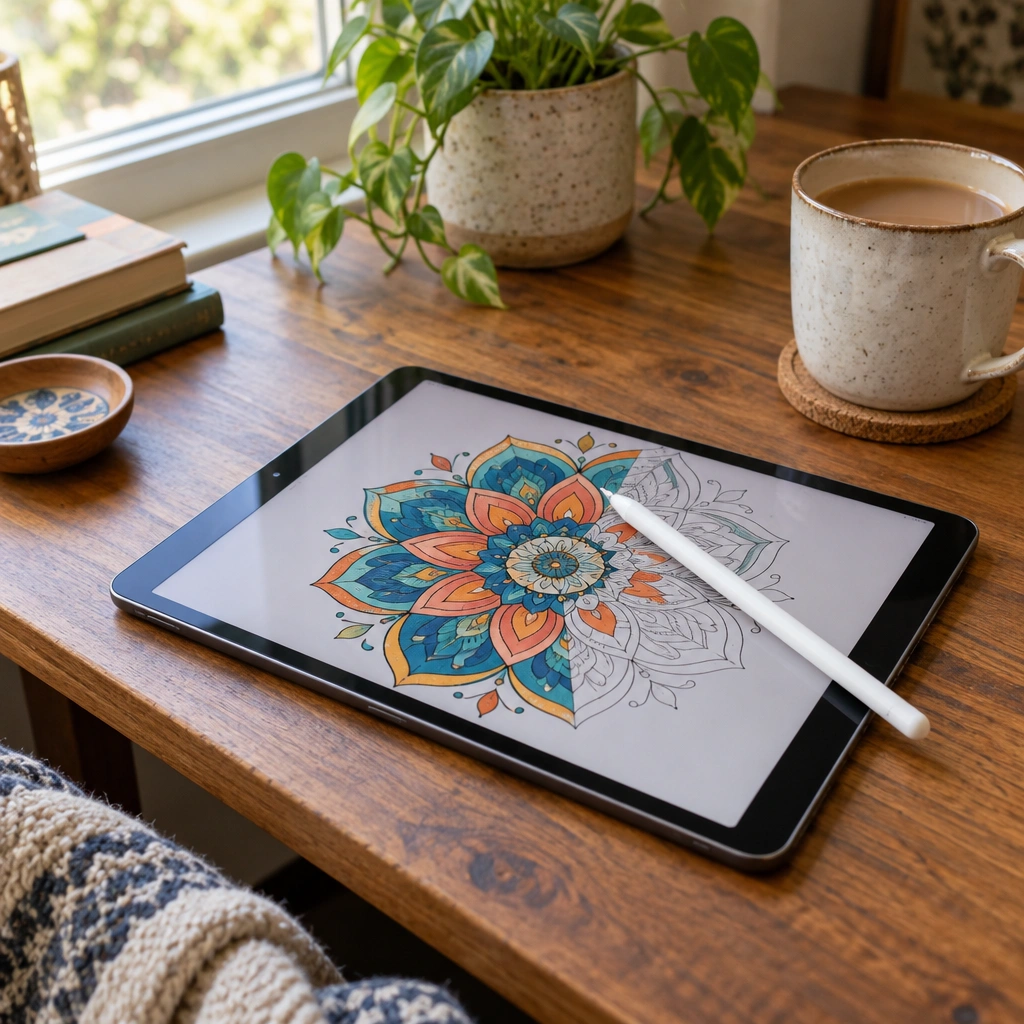
If you have a stack of printable coloring PDFs and an iPad, you do not need to print a single page to use them. The best coloring apps for iPad let you open a PDF, pick up your Apple Pencil, and fill in color right on the screen, no ink, no paper, no bleed-through to worry about.
For coloring printable PDFs on iPad with an Apple Pencil, Pigment is the most purpose-built pick because it is made for coloring, not just drawing. If you want one app that also handles markup, notes and PDF coloring together, GoodNotes is the budget-friendly all-in-one choice. Procreate is worth the upgrade if you want full drawing and shading control.
The short answer
For most people, Pigment is the top pick because it is built specifically for coloring and handles imported PDFs smoothly. If you want to spend less and already use an app for notes and markup, GoodNotes is the budget-friendly all-in-one pick since it colors PDFs just as well as it handles paperwork.
Our picks at a glance
| Pick | Best for | Price tier |
|---|---|---|
| Pigment | Coloring printable PDFs with a built-in library and tools | Mid-range (subscription options) |
| Procreate | Full drawing and shading control | Mid-range (one-time purchase) |
| GoodNotes | Coloring PDFs alongside notes and markup | Budget to mid-range |
| Notability | PDF annotation with coloring layered on top | Budget to mid-range |
| Lake: Coloring Books & Art | A relaxed, guided coloring book experience | Budget to mid-range |
| Happy Color | Simple tap-to-fill coloring for quick sessions | Budget |
| Colorfy | Casual coloring with a large page library | Budget |
| ibisPaint X | Detailed line work and layered coloring | Budget |
| Tayasui Sketches | Natural-feeling brushes for looser coloring | Budget to mid-range |
| Apple iPad (A16) | An affordable iPad that works with Apple Pencil (USB-C) | Budget to mid-range |
| Apple Pencil (USB-C) | Pairing with the base iPad | Budget |
| Paper-feel screen protector | Making the glass feel more like paper | Budget |
| iPad stand | Propping the iPad at a comfortable angle | Budget |
| Kids stylus | Small hands and simpler coloring apps | Budget |
How were these coloring apps for iPad picked?
None of this is based on testing. These are public facts you can check yourself on the App Store before you download anything.
- PDF support: can the app actually open and color a PDF you import, or is it limited to its own built-in pages?
- Apple Pencil support: does the app list pressure sensitivity or tilt support for Apple Pencil in its App Store description?
- Layers and undo: can you color without worrying about messing up the line art underneath?
- Kid friendliness: does the interface use simple icons and big color swatches, or is it built for detailed adult art?
- Age rating: check the App Store age rating and any subscription or in-app purchase disclosures before handing the iPad to a child.
- Update history: look at the “What’s New” section to see if the app is still actively maintained.
Apps built for coloring printable PDFs
Pigment
Best for: Coloring imported PDFs with a dedicated, purpose-built interface.

Why it’s a good pick: Pigment is designed around coloring, not general drawing, so the tools (fill, gradient, pattern brushes) are aimed squarely at filling in line art. It is one of the more popular coloring apps for iPad for people who want something that feels like a coloring book app rather than a sketching app.
Skip it if: you want a single app that also handles notes, markup, or freehand sketching outside of coloring.
Procreate
Best for: Readers who want full creative control, not just filling shapes.
Why it’s a good pick: Procreate is a serious drawing and painting app with deep brush customization, layers, and blending. If you want to shade, add texture, or draw your own lines over a printable before coloring it, Procreate gives you the most room to do that.
Skip it if: you just want to tap and fill a page quickly without learning a more complex toolset.
GoodNotes
Best for: Coloring PDFs on the same app you already use for notes or planning.
Why it’s a good pick: GoodNotes imports PDFs cleanly and lets you add a color layer on top without disturbing the original line art. If you already own it, you do not need a separate app for coloring with Apple Pencil on printable pages.
Skip it if: you want coloring-specific extras like gradient fills or a built-in page library.
Notability
Best for: PDF markup and coloring in one familiar workspace.
Why it’s a good pick: Like GoodNotes, Notability is built around PDF annotation, and coloring a printable page works the same way you would highlight or write notes on a document. It is a solid pick if you want one app for school, work, and coloring.
Skip it if: you want dedicated coloring tools rather than general annotation tools repurposed for color.
Apps built for casual, relaxed coloring
Lake: Coloring Books & Art
Best for: A calm, guided coloring session without a steep learning curve.
Why it’s a good pick: Lake leans into a relaxed, book-like coloring experience with a simple tap-and-fill style. It suits anyone who wants coloring on iPad to feel more like a quiet hobby than a design project.
Skip it if: you specifically need to import your own printable PDFs rather than use the app’s own pages.
Happy Color
Best for: Quick, low-effort coloring sessions with a simple interface.
Why it’s a good pick: Happy Color uses a numbered, tap-to-fill format that is easy for almost anyone to pick up immediately, including older kids coloring with supervision. It is one of the more recognizable casual coloring apps on the App Store.
Skip it if: you want to import and color your own printable PDFs instead of the app’s built-in designs.
Colorfy
Best for: A large built-in library of pages to color on demand.
Why it’s a good pick: Colorfy offers a wide range of built-in designs across styles, from mandalas to nature scenes, so you always have something new to color without searching for printables.
Skip it if: your main goal is coloring your own saved PDF pages rather than the app’s library.
Apps for detailed or artistic coloring
ibisPaint X
Best for: Detailed line work and layered coloring with more advanced tools.
Why it’s a good pick: ibisPaint X supports layers, blending modes, and a wide brush selection, which makes it a good match for printable pages with fine detail that you want to color carefully, section by section.
Skip it if: you find layered, menu-heavy apps overwhelming and just want a simple fill tool.
Tayasui Sketches
Best for: A looser, more natural brush feel for coloring and light sketching.
Why it’s a good pick: Tayasui Sketches is known for brushes that mimic real media, like watercolor and pencil, which suits anyone who wants their digital coloring to look a little less flat and a little more hand-done.
Skip it if: you want precise, contained fills rather than brushes with some texture and bleed built in.

How to choose between coloring apps for iPad
With this many options, it helps to narrow things down by what you actually do most. A few questions worth asking yourself before you pick one:
- Are you coloring your own PDFs or starting from scratch? If you already have a folder of printable pages, PDF import matters more than a huge built-in library. If you are starting from zero, an app with its own page collection, like Colorfy or Happy Color, saves you the trouble of finding pages first.
- Do you want to color quickly or slowly? Tap-to-fill apps get you a finished page in a few minutes. Brush-based apps like Procreate or Tayasui Sketches take longer but give you more control over how the final page looks.
- Is this mainly for a kid or an adult? A child usually does better with a simple interface and big swatches, while an adult who wants detailed shading will get more out of a layered app with a wider brush set.
- Do you need this app to do anything else? If you already use GoodNotes or Notability for school or work, there is a real case for coloring there too instead of adding another app to your home screen.
None of these coloring apps for iPad is objectively wrong. The best coloring app for you is the one that matches how you actually plan to color, not the one with the most features on paper.
What should you look for in a coloring app for iPad?
- PDF import: if you plan to color our free printable pages, confirm the app lets you import a PDF rather than only using its own built-in library.
- Pencil support: look for apps that specifically mention Apple Pencil pressure or tilt support, since this affects how natural the coloring feels.
- Layers: a layer that sits under your line art protects the original drawing while you color, which matters if you want to try again without starting over.
- Simplicity for kids: for a child, a cluttered toolbar with dozens of menus is more frustrating than helpful. Big swatches and a simple fill tool go a long way.
- Subscription versus one-time purchase: some apps use a subscription for extra content, others are a single purchase. Check the current App Store listing before downloading.
- Export options: if you want to save or share a finished page, confirm the app lets you export as an image or PDF when you are done.
Where to find free pages to try with a coloring app
Before you commit to an app, it helps to have real pages to test it on. Our free printable coloring pages library has 2,305 free pages, each one free to download with an email address. Save a page to your iPad, open it in whichever app you are trying, and see how the import and coloring tools actually feel.
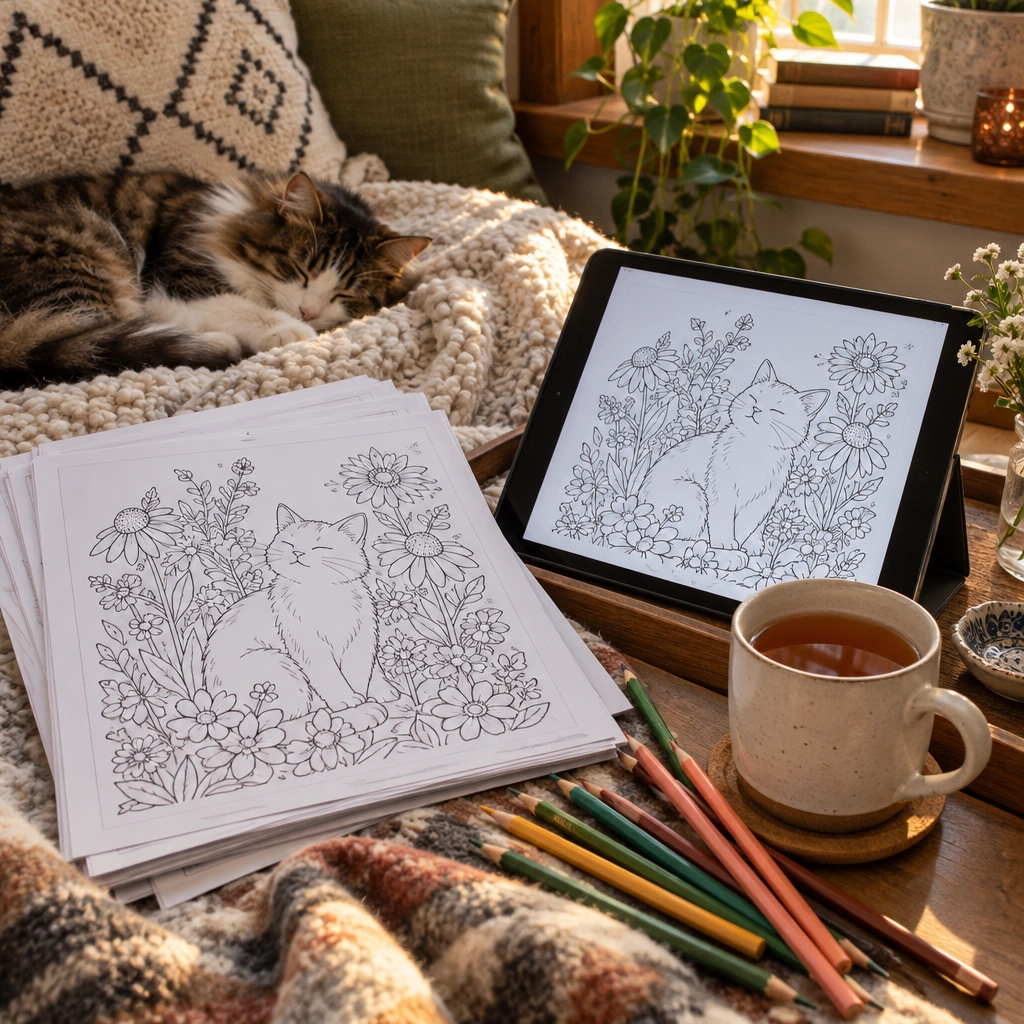
If you want a gentle starting point, our cat coloring pages hub has simple, friendly designs, including Kitten with a Ball of Yarn and Sleeping Cat on a Cushion. For something more detailed, built for slower, adult coloring sessions, try the flower coloring pages hub, including Iris and Magnolia. We also have a full walkthrough on coloring pages on iPad if you want more detail on the import process itself.

The gear that makes coloring on iPad feel good
An app is only half the equation. The hardware you color on changes how the whole thing feels in your hand.
Apple iPad (A16)
Best for: An affordable entry point into coloring with Apple Pencil.
Why it’s a good pick: The base iPad (A16) works with the Apple Pencil (USB-C), which makes it a reasonable, budget-friendly way to start coloring digitally. Keep in mind that this iPad is not compatible with Apple Pencil Pro, so hover and squeeze gestures are not available on this model.
Skip it if: you specifically want Apple Pencil Pro features like hover preview or barrel roll for shading.
Apple Pencil (USB-C)
Best for: Pairing with the base iPad (A16) for everyday coloring.
Why it’s a good pick: It covers the basics of pressure-sensitive drawing and coloring without the premium price of Apple Pencil Pro, and it matches the iPad most casual colorers are likely to own.
Skip it if: your iPad model supports Apple Pencil Pro and you want its extra gestures.
Paper-feel screen protector
Best for: Making glass feel more like coloring on actual paper.
Why it’s a good pick: A textured, paper-feel screen protector adds a bit of friction under the pencil tip, which a lot of people find makes coloring and shading feel more natural compared to bare, slick glass.
Skip it if: you prefer a perfectly smooth screen or use your iPad heavily for video and gaming too.
iPad stand
Best for: Comfortable coloring sessions without hunching over a flat tablet.
Why it’s a good pick: An adjustable stand props the iPad at an angle closer to a real sketchbook or coloring book, which is easier on your neck and wrist during longer coloring sessions.
Skip it if: you mostly color on the go and need the iPad to stay flat in a bag.
Kids stylus
Best for: Younger kids using a kid-friendly tablet instead of an iPad.
Why it’s a good pick: A kids stylus usually has a chunkier, rounded tip built for smaller hands and simpler coloring apps, which suits a child better than a precision pencil designed for detailed digital art.
Skip it if: your child is already comfortable with a standard Apple Pencil and more detailed apps.
A note on printed pages too
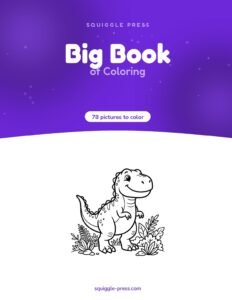
Not every coloring session has to happen on a screen. If you would rather hand a child a real book that never needs charging, our own Big Book of Coloring is a printed, coil-bound book with 78 pictures for kids 4 to 8, printed one-sided so markers never bleed through to the next page. For adults who want the same no-bleed-through printed experience with a flower theme, our Botanical Gardens coloring book works well alongside, or instead of, an iPad session.
If you are curious about paper choices for printing your own PDFs at home, our guide on which paper stops markers bleeding through is worth a look, and our markers for coloring books guide covers supplies for printed pages specifically. For more on choosing safe art supplies for kids in general, the American Academy of Pediatrics’ parenting site HealthyChildren.org is a useful outside resource. If you are still deciding on hardware before apps, our best iPad for coloring guide goes deeper on model choice.
Questions people ask about coloring apps for iPad
People searching for the best coloring app for kids iPad, the best app for coloring with Apple Pencil, or just a coloring app for iPad free often land on the same handful of apps listed above. The right one usually comes down to whether you want to color your own printable PDFs or just tap through a built-in library.
One more thing worth knowing: switching between a few of the best coloring apps for iPad is not a bad strategy either. A lot of people keep one app for quick fills and a second one for slower, detailed sessions, since the two kinds of coloring use different tools and different parts of your attention.
Whatever you land on, the app matters less than just getting started. Open a page, pick a color, and see how it feels under your pencil.
Frequently asked questions
What is the best app for coloring on iPad?
Pigment is built specifically for coloring and handles imported PDFs well, which makes it a strong first choice. If you already own GoodNotes or Notability for notes, either one also works fine for coloring printable PDFs.
What is the best app for coloring on iPad for free?
Several coloring apps, including Happy Color and Colorfy, let you start coloring without paying up front, though extra palettes or pages are often locked behind a purchase. Check the App Store listing for current details before you download.
What is the best app for coloring PDFs?
GoodNotes and Notability both import PDFs cleanly and let you color directly on the page with layers, which makes them reliable picks for printable coloring pages saved as PDF files.
How do I color printable coloring pages on iPad?
Save or export the printable PDF to your iPad, open it inside a PDF-friendly app like GoodNotes, Notability or Pigment, then use the Apple Pencil to fill in color directly on the page layer.
What is the best coloring app for kids on iPad?
Happy Color and Colorfy are simple enough for kids to tap and fill, but for younger children a basic drawing app with large color swatches and no timed or paid features tends to work better than apps built for adults.
Does Apple Pencil work with the base iPad?
The base iPad (A16) works with the Apple Pencil (USB-C), but it is not compatible with Apple Pencil Pro. Keep that in mind if hover and squeeze gestures matter to you.
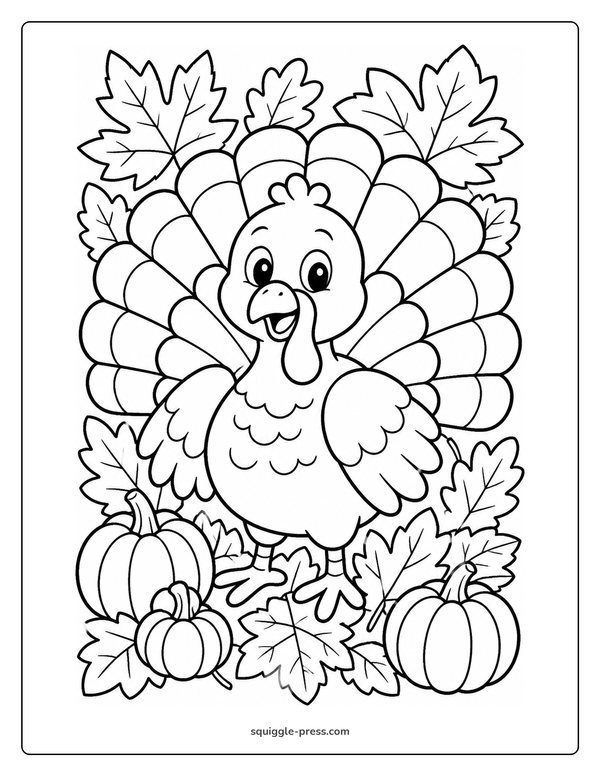
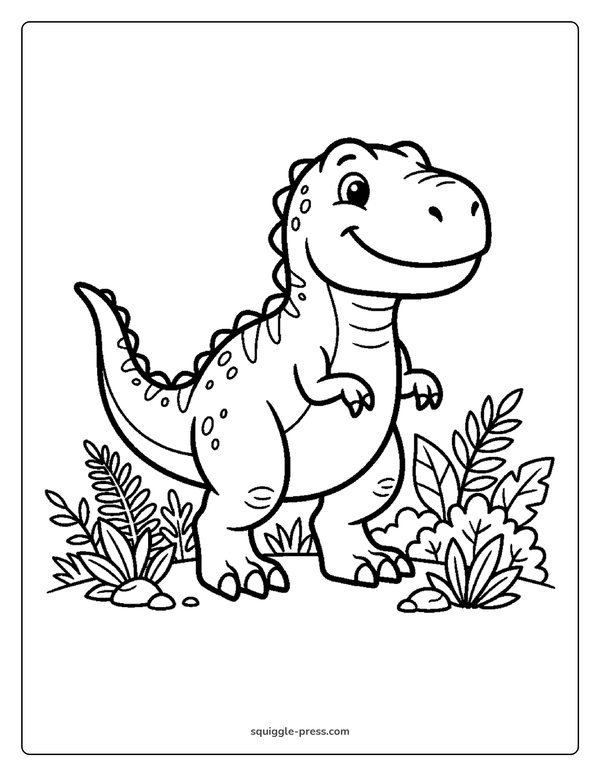
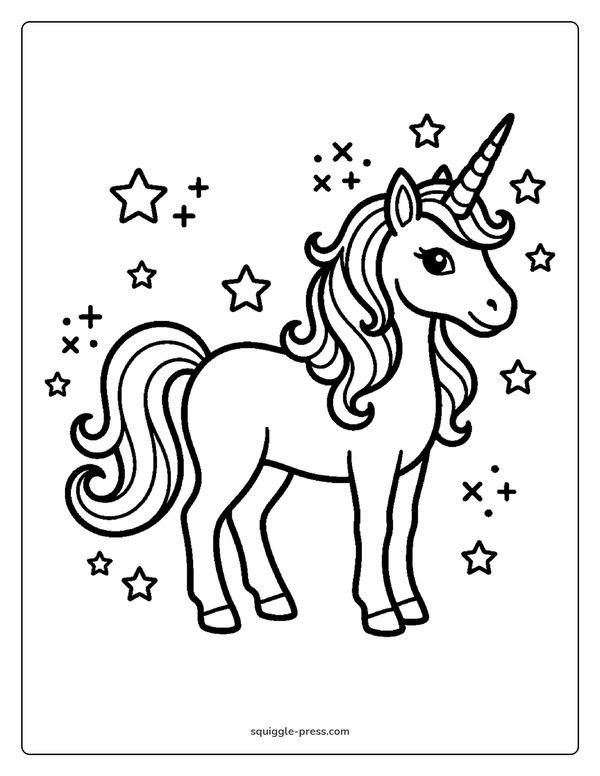
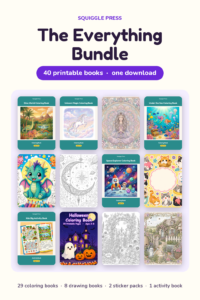
Every Squiggle Press book: 40 printable PDFs for $9.99
Kids coloring books, adult coloring books, drawing tutorials & sticker packs. Over $150 if bought separately. Print unlimited copies forever.
Get the bundle →